A Closer Look at the Transactions Module
The Transactions module is designed to support expanding portfolios, where new properties, land, or space are introduced over time.
As organizations grow, portfolios evolve through new site acquisitions, land development, phased expansions, and footprint changes. Transactions provide a structured way to capture those space additions as they happen, creating a clear record of how the portfolio grows.
While Transactions focus on tracking space changes tied to expansion, remodels, and renovation cost tracking are handled through the Projects module, which is purpose-built for construction activity and expense management.
This post walks through how the Transactions module works and how teams use it in practice.
A Central View of Portfolio Expansion
Transactions provide a centralized place to record space-related changes tied to expanding leases, land, or properties.
Each transaction is connected directly to the relevant record, creating a clear timeline of how new space is added across the portfolio.
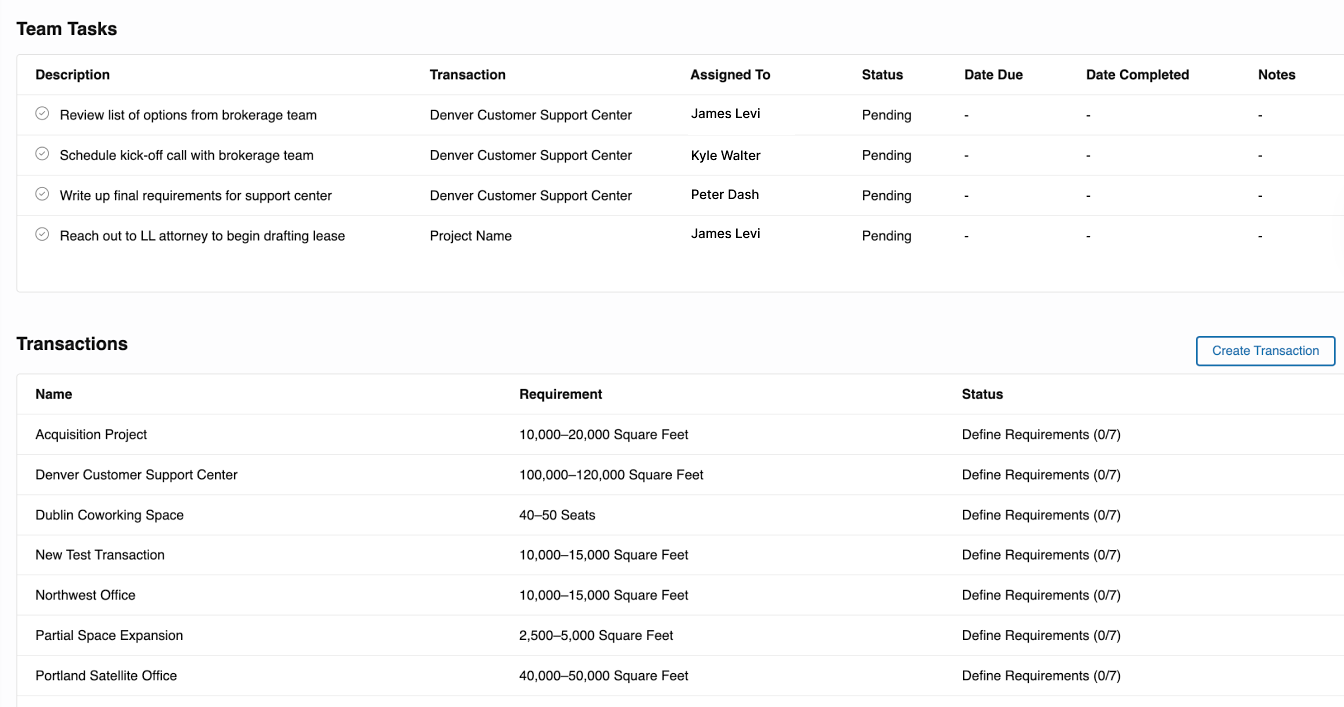 Caption: Viewing all expansion-related transactions in one place.
This view helps teams understand what space was added, when it became effective, and how much was introduced.
How Teams Use Transactions in Practice
Transactions are designed to support active expansion workflows, from planning through delivery.
Step 1: Create a Transaction
Teams create a transaction and associate it with the relevant lease, property, or land record.
They define:
- The transaction name
- The applicable size range
- The unit of measurement
- Supporting context for the expansion
Screenshot:
Caption: Creating a new transaction tied to portfolio growth.
Step 2: Add Milestones
Milestones reflect the phases of expansion.
They are commonly used to track stages such as:
- Site approved
- Groundbreaking
- Space delivered
- Expansion finalized
Screenshot: 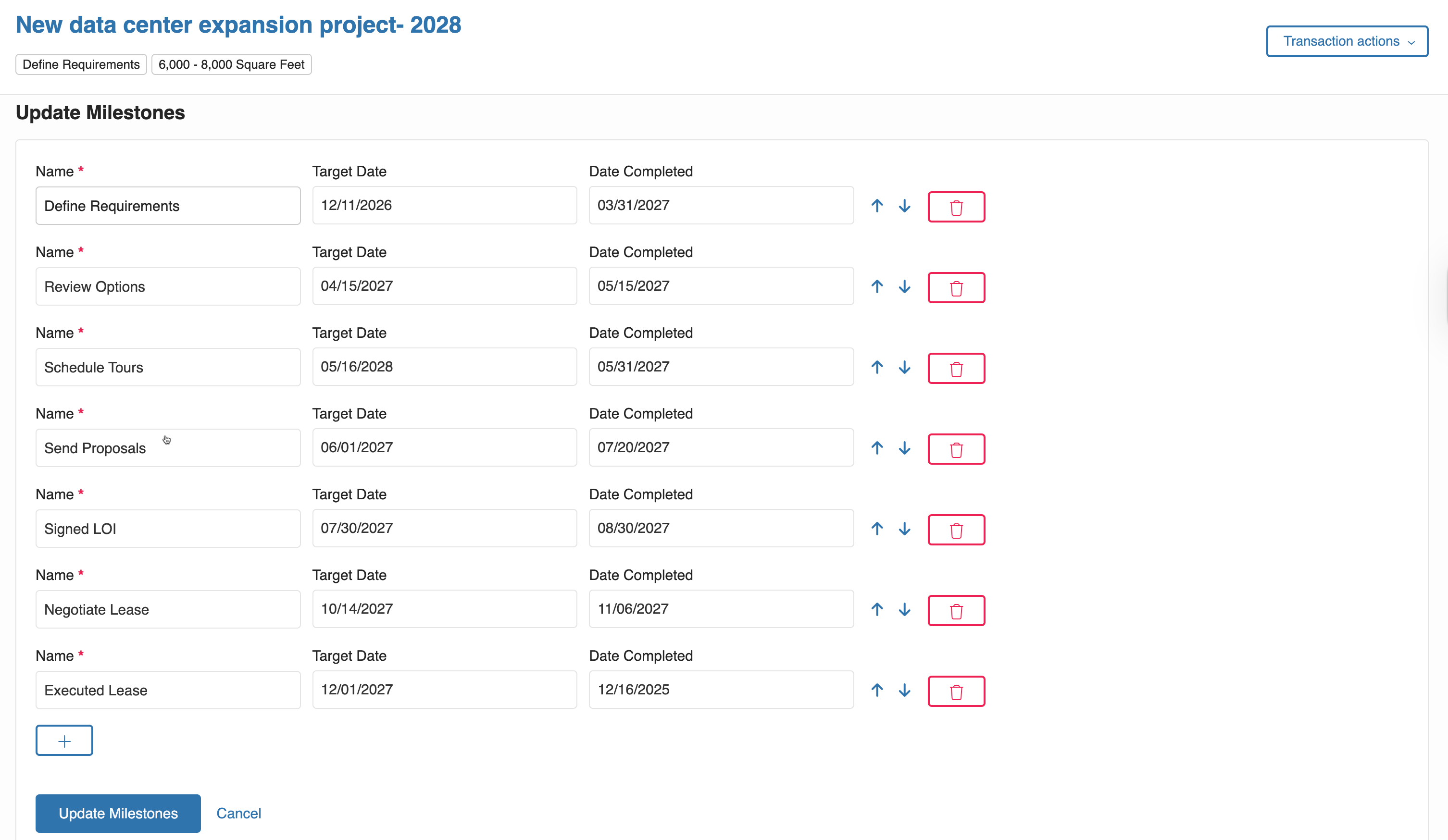 Caption: Tracking expansion progress through milestones.
Milestones help teams understand the status of new space as it is introduced.
Step 3: Assign Tasks
Tasks coordinate the work required to bring new space into the portfolio.
Examples include:
- Finalizing lease terms
- Confirming delivered square footage
- Coordinating internal approvals
- Preparing reporting updates
Screenshot: 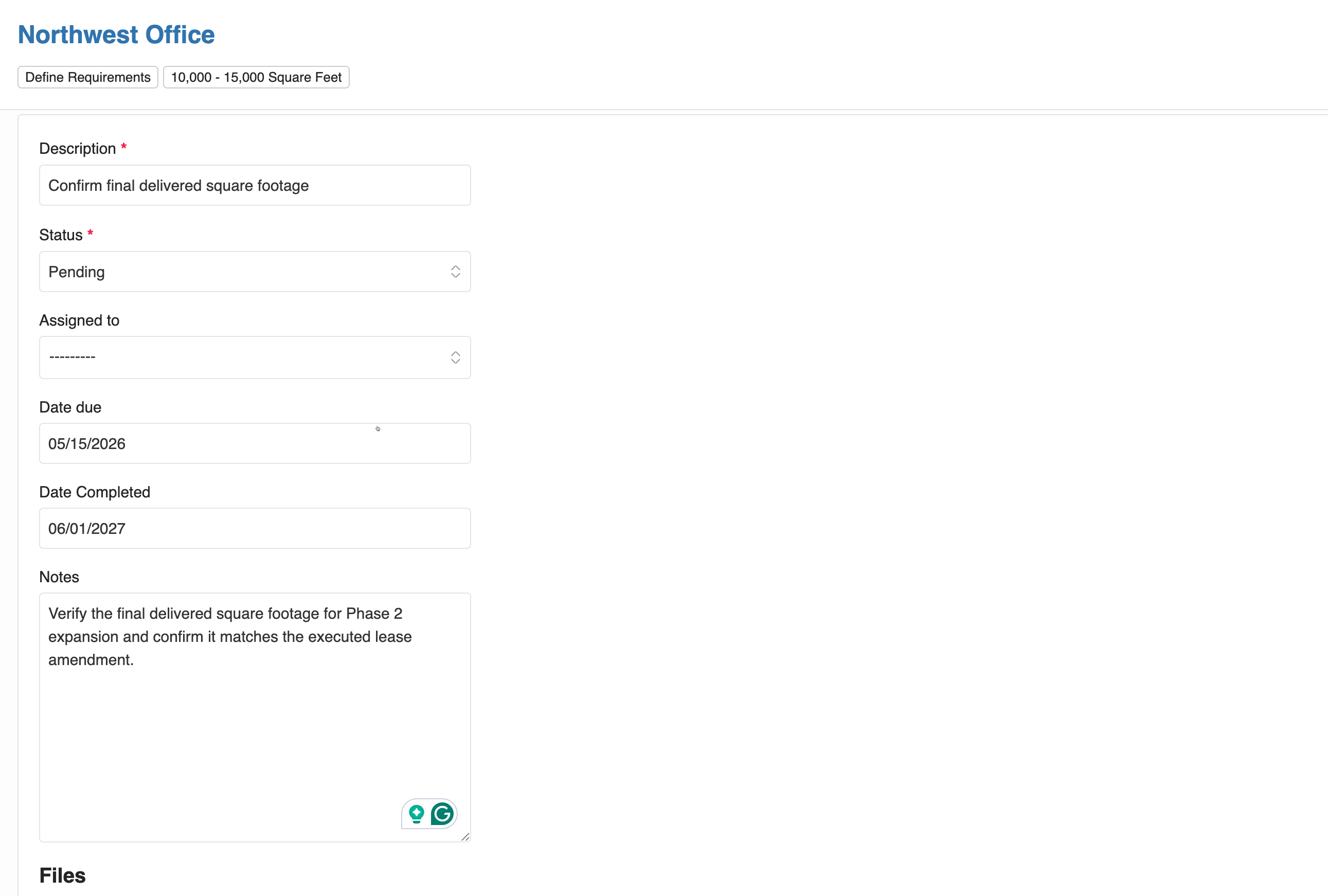 Caption: Managing expansion-related tasks inside a transaction.
Step 4: Link Locations
Transactions can be tied to specific locations, such as new sites, buildings, or parcels.
This is especially useful when portfolios expand across multiple regions.
Screenshot: 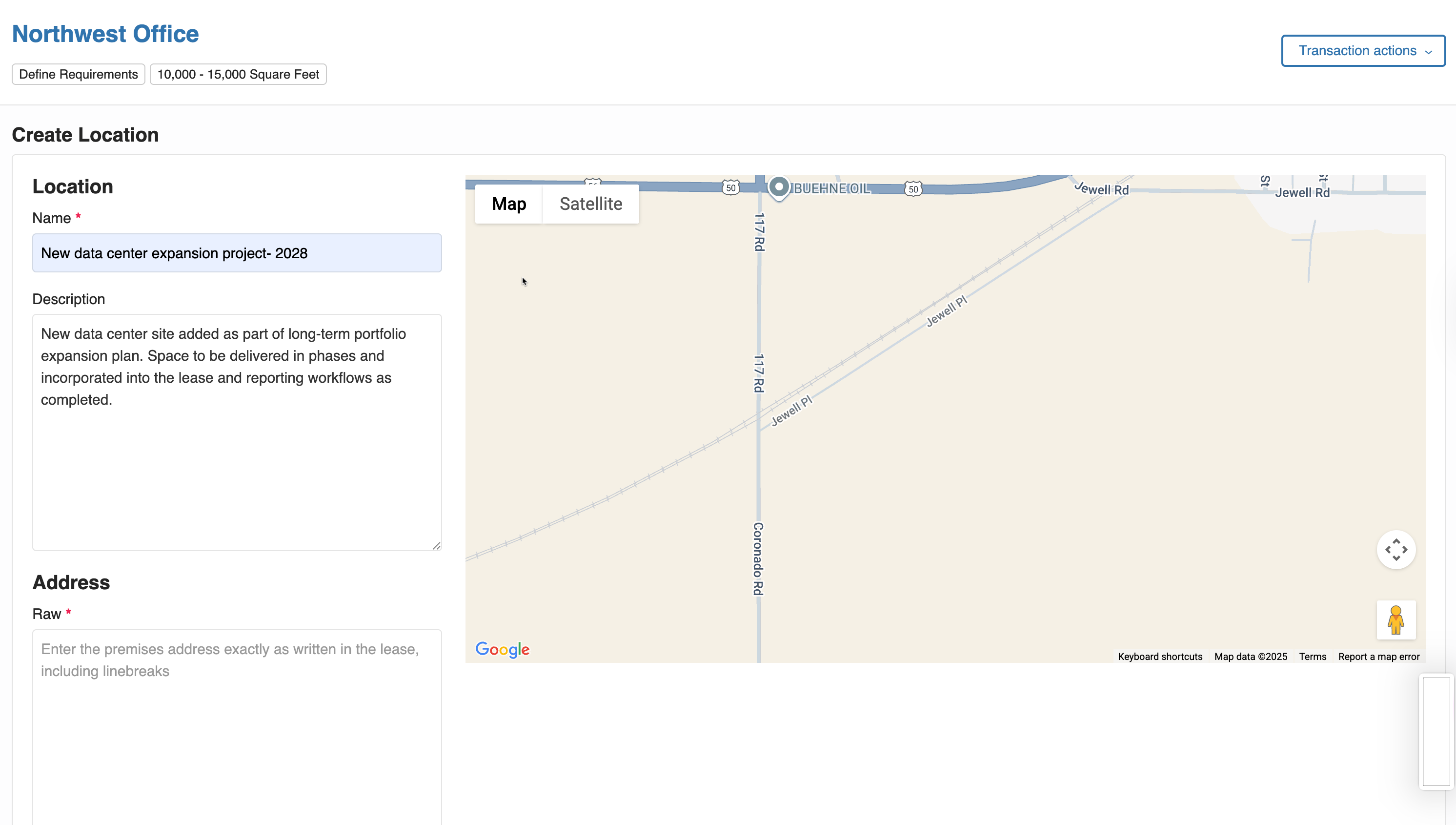
Caption: Linking a transaction to a new
Step 5: Planning and Reviewing Future Expansion
Transactions also support early-stage planning before changes are finalized.
Teams can document anticipated expansion activity and outline potential size changes within the transaction itself. This makes it easier to review upcoming additions, align internally, and maintain visibility into what space is expected to enter the portfolio over time.
Rather than committing changes immediately, this approach allows teams to keep expansion planning structured and traceable as decisions progress.
Step 6: Keeping Expansion Context in One Place
As transactions move forward, teams often need to reference supporting information tied to the expansion.
Transactions provide a centralized place to store relevant context so that space changes can be reviewed and understood later without relying on external systems. This keeps expansion activity organized and ensures important details remain connected to the transaction over time.
Editing and Exporting Transactions
As expansion plans evolve, transactions can be updated to reflect new information.
Teams can edit transaction details as space is delivered, milestones are reached, or assumptions change. This ensures the transaction remains accurate throughout the lifecycle of the expansion and continues to reflect the current state of the portfolio.
Transactions can also be exported when information needs to be shared outside the platform. Exports are commonly used for internal reviews, stakeholder updates, or reporting workflows, while maintaining Spacebase as the source of truth.
A Complete Record of Portfolio Growth
By combining size-based transactions with structured context, each transaction becomes a clear record of how new space enters the portfolio.
Over time, teams can reference transactions to understand:
- What space was added
- When it was introduced
- How the expansion activity progressed
- What context supported key decisions
This is especially valuable for growing portfolios where expansion activity unfolds over long timeframes.
How Transactions Fit Within the Platform
Transactions work alongside lease administration and accounting workflows to provide visibility into portfolio growth.
As new space is introduced, transactions help teams understand how expansion activity connects back to leases and reporting without managing those changes in isolation.
This creates a more complete view of portfolio evolution as organizations scale.
Final Thoughts
The Transactions module is built for expanding portfolios where new space is introduced over time.
By treating transactions as active records of growth, teams gain clearer visibility, better internal alignment, and a reliable history of how their portfolio evolves as it scales.

Brooke Colglazier
Marketing Manager